Why Movies Look Different on Your TV: Motion Smoothing and the Soap Opera Effect
- Primary Signal: Why Movies Look Different on Your TV: Motion Smoothing and the Soap Opera Effect
- Overview: If movies on your TV look like a cheap soap opera, motion smoothing is the culprit. Here is what the setting does, why directors want it off, and how to disable it on Samsung, LG, ...
- Verification: Analyzed and compiled by CosmoCinema 998 editorial monitoring desk.
Have you ever watched a film at a friend's house and thought it looked strangely like a cheap soap opera? That is motion smoothing — the setting that makes movies look like video, and the reason directors have publicly begged people to turn it off. Your TV ships with it enabled by default, and it changes the look of everything you watch, from blockbusters to old classics.
Motion smoothing, sold under names like MotionFlow, TruMotion, Auto Motion Plus, and Smooth Motion, is a frame-interpolation feature. Films are shot at 24 frames per second, but modern TVs refresh at 60 or 120 times per second. To fill the gap, the TV invents extra frames by guessing what happens between the real ones. The result is ultra-smooth movement that looks realistic for live sports — and deeply wrong for films, which were designed to have a slight motion blur and a cinematic rhythm.
Directors hate the effect because it erases the texture of cinema. The slight judder of 24-frame film is part of the language: it tells your brain you are watching a crafted story, not a live broadcast. When motion smoothing removes it, a period drama looks like a daytime soap, and an epic battle looks like behind-the-scenes footage. Christopher Nolan, Martin Scorsese, and Tom Cruise have all publicly asked viewers to turn the setting off, and the campaign eventually forced TV makers to add a Filmmaker Mode that disables it in one tap.
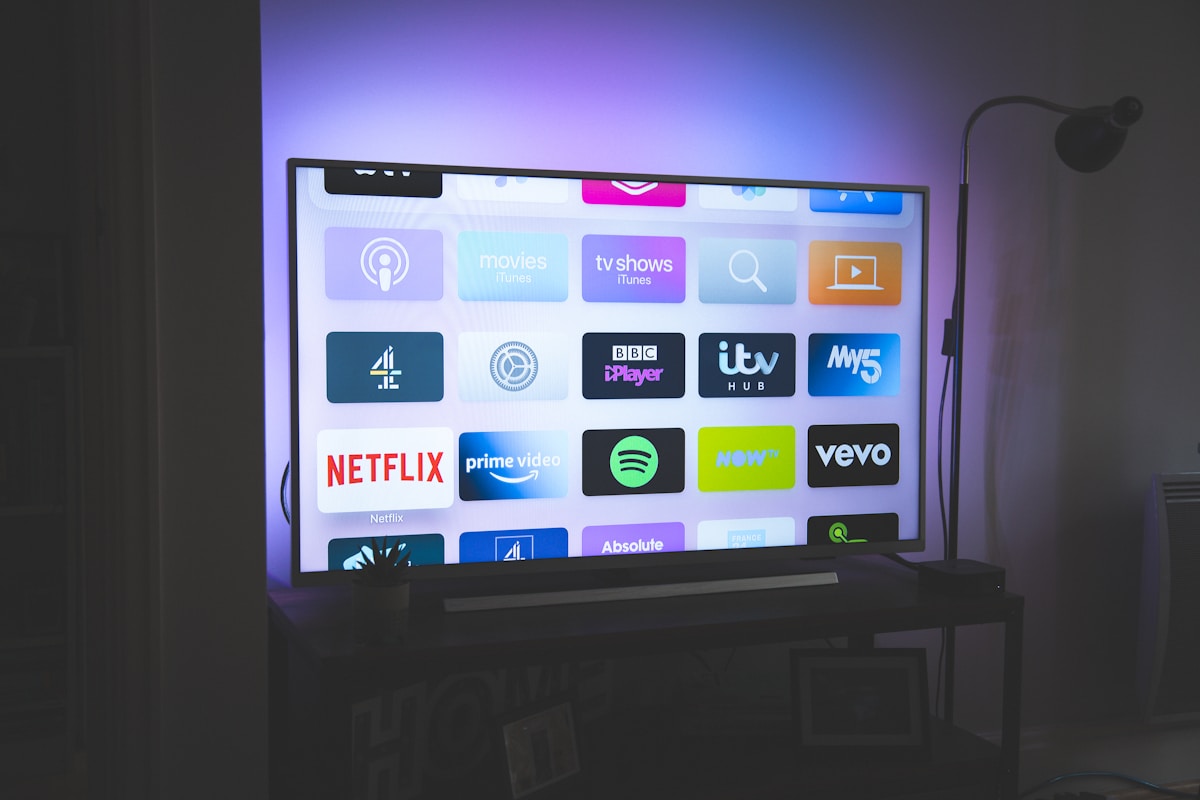
Turning it off takes two minutes. On Samsung TVs, look under Settings, Picture, Expert Settings, and set Auto Motion Plus to Off. On LG, go to Picture, Picture Mode Settings, and turn TruMotion off. On Sony, it is under Motion, MotionFlow, set to Off. On most 2020 and newer TVs, the fastest route is Filmmaker Mode or Cinema mode, which disables smoothing and sets the color temperature correctly at the same time. Do this once, on each picture mode you use, and the setting stays off.
Motion smoothing is not useless — it is just wrong for films. For live sports, it genuinely helps: fast panning shots and quick player movement look cleaner with interpolation. Some viewers also prefer it for video games and reality TV. The key is matching the setting to the content. If your TV lets you set picture modes per input or per app, use Cinema or Filmmaker Mode for films and a sports or standard mode for live games, and you get the best of both worlds.
Motion smoothing is the biggest offender, but it is not the only default setting that hurts picture quality. Sharpness is usually set far too high out of the box, which adds a harsh edge around objects that was never in the film. Color temperature is often set to cool, which makes everything look blue and clinical; switching to warm brings skin tones back to normal. Eco mode dims the screen to save power, and on many TVs it makes films look muddy in a bright room. Game mode is worth using for games because it cuts input lag, but it usually disables the picture processing that makes films look good. A quick pass through these four settings — smoothing off, sharpness low, warm color, eco off — transforms most TVs more than any single upgrade you could buy.
The bottom line is simple: if films on your TV look oddly smooth, cheap, or video-like, motion smoothing is almost certainly the cause. Turn it off, switch to Filmmaker Mode, and watch a film you love. The difference is immediate, and once you see it, you will never go back.
📖 Continue Reading the Full Story
Continue reading this article on CosmoCinema 998.
⚡ Access Full Content NowMore from CosmoCinema 998